Account Registration
This guide covers the steps required to register your JLab account with the GlueX Rucio instance.
Prerequisites
Before starting, ensure you have:
- An active JLab computing account
- Access to your JLab email
Get Your Identifier and Request Rucio Account
Step 1: Retrieve Your CILogon User Identifier
- Go to https://cilogon.org. You see a cilogon page like
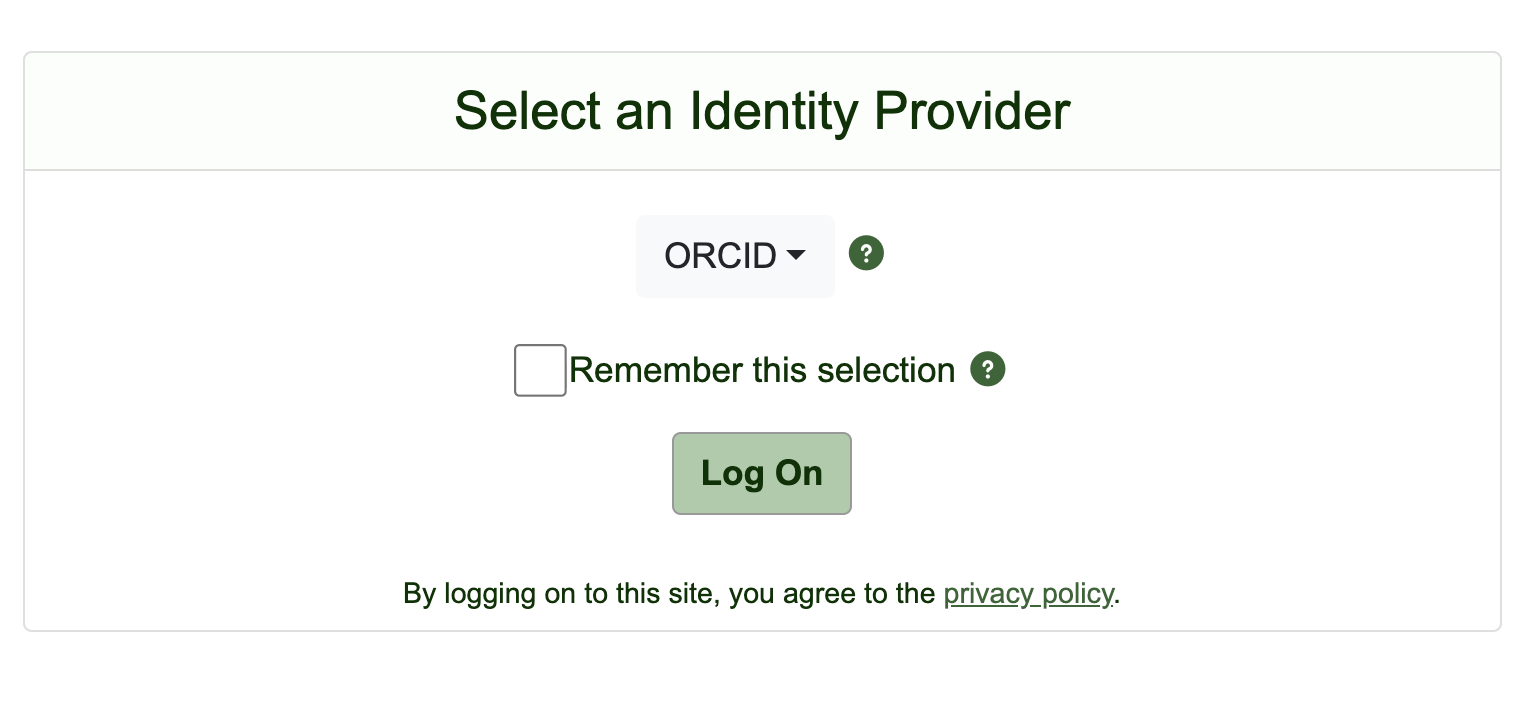
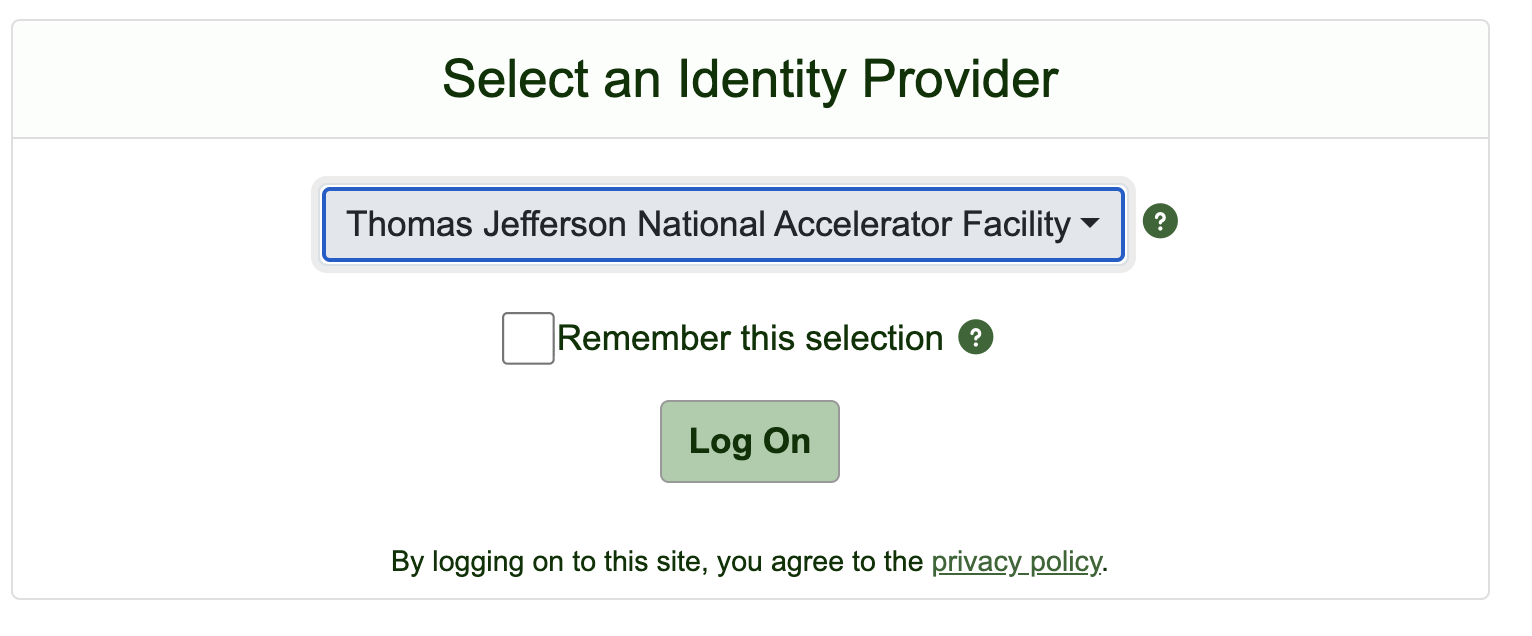
- Select "Thomas jefferson National Accelerator Facility" from the drop down and click "Log On" button.
- After you will be redirected to Jlab login page. Login there and then you will see page like
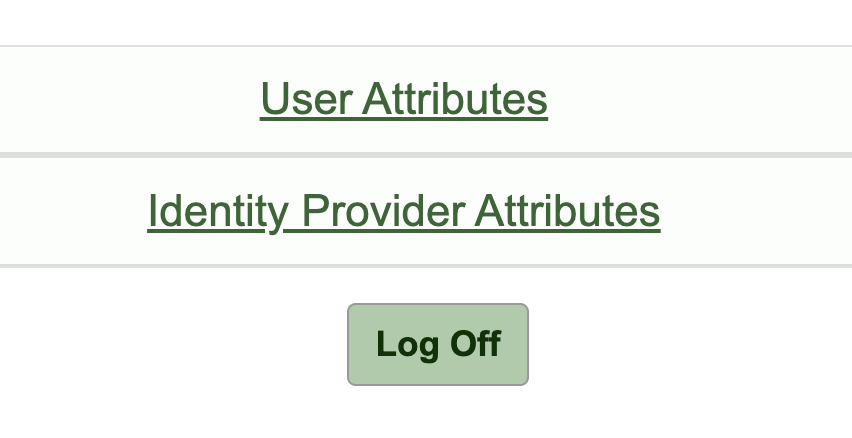
- Click on User Attributes
- Locate the field labeled CILogon User Identifier
- Copy the entire identifier value (it will look like:
http://cilogon.org/serverX/users/######)
Step 2: Request Rucio Account Creation
Send an email to the GlueX Rucio administrators with the following information:
To: panta@jlab.org
Subject: Request for GlueX Rucio Account
Email body:
Hello,

I would like to request a Rucio account for GlueX data management.

Name: [Your Full Name]
JLab Username: [Your JLab username]
CILogon User Identifier: [Paste the identifier you copied]

Thank you.
Step 3: Confirmation
- You will receive a confirmation email once your Rucio account has been created
- This typically takes 1-2 business days
- Once confirmed, you can proceed to configure the Rucio CLI tools
Next Steps
After your account is activated:
- Follow the Rucio Command Line Tools guide to set up your client
- Test your access using
rucio whoami - Begin searching and downloading GlueX data
Troubleshooting
Did Not Receive Confirmation Email
- Check your spam/junk folder
- Verify you sent the email to the correct address
- Allow 1-2 business days before following up
- If no response, send a follow-up email or contact the GlueX computing coordinator
Support Contacts
- JLab IT Support: helpdesk@jlab.org
- GlueX Computing: panta@jlab.org