Using LibreChat
LibreChat is the primary user-facing interface for interacting with Jefferson Lab's on-prem LLM services.
It provides a modern chat UI that authenticates through CILogon and forwards model requests to an internal LiteLLM gateway. LibreChat is an open source project with a large active community. To find out more about the project - please view the LibreChat documentation.
Logging into LibreChat
You can access LibreChat from the LLM landing page: delphi.jlab.org
Upon visiting the site, select Enter Librechat
- You will be redirected to CILogon
- On the CILogon site select Thomas Jefferson National Acceleratorr Facility
- You will be returned to LibreChat with an active user session
- On your first login, please read and agree to the terms
LibreChat stores:
- Chat History
- Session ID
- CILogon user ID (sub)
- Profile information (name, email)
- External tokens
Using the Local Models in LibreChat
LibreChat will automatically read the available models from the LiteLLM model list endpoint.
You should see models like:
GPT-OSS-120B
MistralAI 7B Instruct
ℹ️ You will need to supply an API key to access the models through LibreChat. Review the Obtaining API Keys for to obtain an API key. To add the key, hover over the model you wish to use, and select the gear icon. Enter the key - when you reset the key, you will need to re-enter the updated key for all models you use.
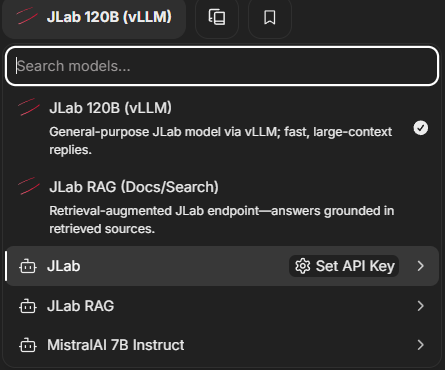
To create a chat session:
- Click “New Chat”
- Select a model from the model dropdown
- Start interacting with the local LLM
All requests are routed internally and never leave JLab systems.
Additional Features
LibreChat is more than just a chat interface. While our current deployment focuses on secure, high-performance chat, the platform also supports a wide range of advanced capabilities that we can enable in the future. These features open the door to building powerful, personalized AI workflows.
✨ Agents
LibreChat can host AI agents that perform multi-step tasks automatically. Examples include:
- Document research and summarization
- Automated data extraction
- Multi-step reasoning workflows
- Task-specific assistants (coding helper, policy analyzer, etc.)
🔌 External Tool Integrations
LibreChat supports connecting AI models to tools so they can perform actions, such as:
- Searching private knowledge bases
- Triggering custom or internal APIs
This allows AI models to go beyond conversation and tackle operational tasks.
🧩 Plugin Ecosystem
LibreChat supports plugins similar to earlier OpenAI ChatGPT plugins. These could enable:
- Database lookups
- File storage and retrieval
- Automation triggers
- Third-party app integrations
🔗 MCP (Model Context Protocol) Servers
LibreChat includes support for MCP, a standard for exposing resources to AI models. With MCP enabled, users could:
- Connect project files or code repositories
- Attach personal or organizational data sources
- Use structured tools with reliable input/output formats
This makes the AI far more capable while keeping data access under user control.
📄 File Uploads and Search Tools
There is currently a built-in personal RAG for uploaded documents and chat histories
- Uploading PDFs, documents, spreadsheets
- Document-based question answering
- Multi-file reasoning (e.g., reading a whole repository)
🌐 Multi-Model Selection
We can add multi-modal endpoints in the future.
- Vision models
- Custom models
- Small fast models for quick tasks
Troubleshooting
I get stuck at the CILogon redirect
Try clearing cookies for the delphi.jlab.org.
I get “Not Authorized” after login
Make sure you seleced Thomas Jefferson National Accelerator Facility in CILogon and logged in with your CUE username and password.
Be Patient
This system is a test system. Please understand that services may go down unexpectedly.